How does an admin view a monthly consolidated attendance report for students?
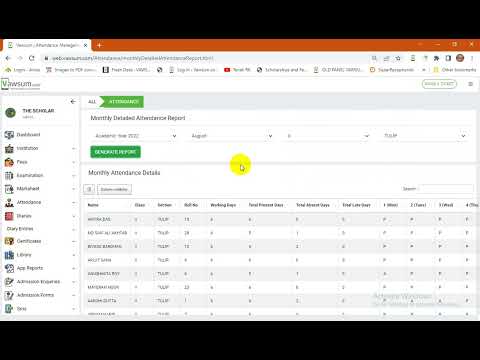
Consolidated monthly attendance reports are generated from Vawsum Web by an admin. Go to Attendance on the left panel, choose Monthly Detailed Attendance, select the academic year, month, class and section, then click Generate Report. The report shows total attendance-captured days with present, absent and late counts, plus a day-level breakup for each student, and can be exported to Excel.
Steps to generate a monthly consolidated attendance report
- Login to Vawsum Web using your credentials as an Admin.
- Go to Attendance (available on the left panel on the dashboard).
- Click on Monthly Detailed Attendance from the dropdown.
- The screen shows options to select the desired academic year, month, class and section to generate the report.
- Next, click Generate Report to view the onscreen attendance report for each student of the selected class.
- An Excel version of the report can be generated from the same page (top-left corner, beside column visibility).
- The page displays total counts of attendance-captured days, present, absent and late counts, and gives a day-level breakup for each student.
- Repeat the above steps to generate the respective reports for other classes.
Note: only admins are recommended to perform the above activity of generating the report.
Watch the video to know more.
Book a free demo with us today!


