How does an admin view a monthly detailed attendance report for a student?
Detailed student attendance reports are generated from Vawsum Web by an admin. Go to Attendance on the left panel, choose Reports, then Student Attendance Report. Select the student and a date range and click Generate Report. The report can also be exported to Excel, and includes any absence reason a teacher recorded.
Steps to generate a monthly detailed attendance report
- Login to Vawsum Web using your credentials as an Admin.
- Go to Attendance (available on the left panel on the dashboard).
- Click on Reports from the dropdown.
- Next, click on Student Attendance Report (4th option in the dropdown).
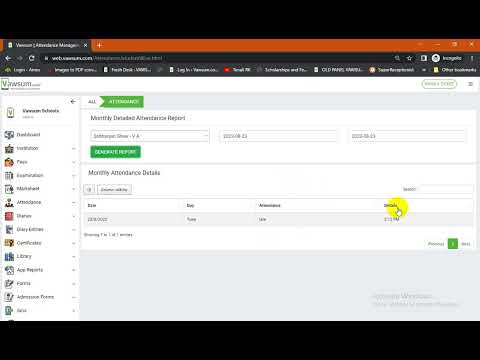
- The page gives the option to choose the student from the dropdown.
- Next, select a date range.
- Click on Generate Report (green button available on the page).
- The page displays the detailed attendance report of the desired student.
- An Excel version of the onscreen report can also be generated (button available on the same page).
- If a teacher marked a student absent and left a note giving the reason, that reason also appears on this report.
Note: only admins are recommended to perform the above steps to generate this report.
Watch the video to know more.
Book a free demo with us today!


